TLDR
Deploy a ready-to-use VLESS+Reality VPN on any VPS in under 5 minutes:
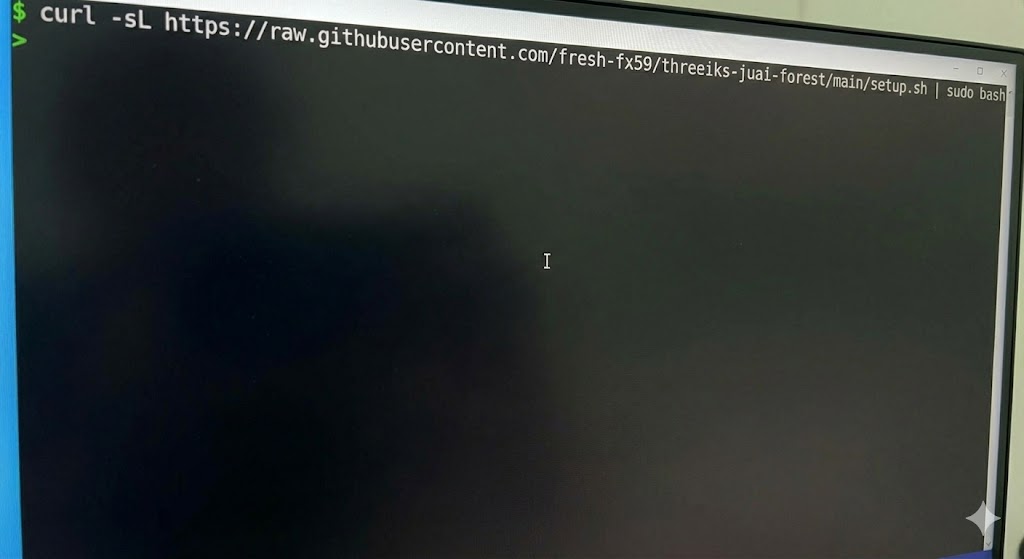
curl -sL https://raw.githubusercontent.com/fresh-fx59/threeiks-juai-forest/main/setup.sh | sudo bash
One command — everything is configured automatically. You get a VLESS URI ready to paste into your VPN app. No manual panel setup needed.
What You Get
VLESS+Reality is the most advanced proxy protocol available today. It works by mimicking a TLS handshake to a real website (e.g., dl.google.com). Deep packet inspection (DPI) systems see what looks like normal HTTPS traffic to Google. If they probe the server, it actually proxies to Google — only authenticated clients get through the VPN tunnel.
No TLS certificates to manage. No domain needed. Just a VPS with a public IP.
Prerequisites
- A VPS with Ubuntu 22.04+ (any provider: DigitalOcean, Hetzner, Vultr, etc.)
- SSH access with root or sudo privileges
- Port 443 available (not used by another service)
Quick Start (Docker)
Option A: One-liner setup
SSH into your VPS and run:
curl -sL https://raw.githubusercontent.com/fresh-fx59/threeiks-juai-forest/main/setup.sh | sudo bash
This script will:
- Install Docker if not present
- Create and start the 3X-UI container
- Auto-configure the panel: random credentials, random port, random web base path, HTTPS
- Create a VLESS+Reality inbound on port 443 with auto-generated keys
- Configure UFW firewall
- Print the panel URL, credentials, and a ready-to-use VLESS URI
Important: The credentials and VLESS URI are printed only once at the end — save them immediately.
Option B: Manual Docker Compose
Create a working directory and compose file:
sudo mkdir -p /opt/3x-ui && cd /opt/3x-ui
Create docker-compose.yml:
services:
  3x-ui:
    image: ghcr.io/mhsanaei/3x-ui:latest
    container_name: 3x-ui
    hostname: 3x-ui
    restart: always
    network_mode: host
    volumes:
      - ./db/:/etc/x-ui/
      - ./cert/:/root/cert/
    environment:
      XRAY_VMESS_AEAD_FORCED: "false"
    tty: true
    stdin_open: true
Start the container:
sudo docker compose up -d
Configure the firewall:
sudo ufw allow 22/tcp    # SSH
sudo ufw allow 443/tcp   # VLESS+Reality
sudo ufw allow 2053/tcp  # Panel (change after securing)
sudo ufw enable
The panel will be available at http://YOUR_SERVER_IP:2053/ with default credentials admin/admin.
Important: With Option B you must manually change the default credentials, configure HTTPS, and create a VLESS inbound. The one-liner (Option A) does all of this automatically.
Configure VLESS+Reality
Note: If you used the one-liner (Option A), VLESS+Reality is already configured and a ready-to-use URI was printed at the end. This section is for manual setup (Option B) or if you want to add more clients.
How Reality works
- Client initiates a TLS handshake that looks identical to connecting to a legitimate site (e.g.,
dl.google.com) - The server verifies the client using an X25519 key pair and shortId
- If verification fails (e.g., a DPI probe), the server proxies to the real
dl.google.com— the probe sees a legitimate website - If verification succeeds, the encrypted VLESS tunnel is established
Create the inbound
- Log in to the 3X-UI panel
- Go to Inbounds > Add Inbound
- Configure:
| Setting | Value |
|---|---|
| Remark | vless-reality |
| Protocol | vless |
| Listen IP | (empty) |
| Port | 443 |
Client settings:
- Email: any identifier (e.g.,
user1) - Flow:
xtls-rprx-vision
- Email: any identifier (e.g.,
Transport settings:
- Transmission:
tcp
- Transmission:
Security settings:
- Security:
reality - uTLS:
chrome(orfirefox,safari) - Click Get New Cert to generate X25519 keys
- Dest:
dl.google.com:443 - SNI:
dl.google.com - ShortIds: auto-generated
- Security:
Click Create
Good dest targets
The target site should support TLSv1.3 + HTTP/2 and not redirect:
| Target | Notes |
|---|---|
dl.google.com:443 | Reliable, fast globally |
www.microsoft.com:443 | Good alternative |
www.apple.com:443 | Works well |
gateway.icloud.com:443 | Low profile |
www.amazon.com:443 | Widely accessible |
Get the client link
- In Inbounds, click the info icon next to your inbound
- Copy the VLESS URI or scan the QR code
The URI looks like:
vless://<uuid>@YOUR_SERVER_IP:443?flow=xtls-rprx-vision&encryption=none&type=tcp&security=reality&sni=dl.google.com&fp=chrome&pbk=<public_key>&sid=<short_id>#vless-reality
Client Apps
| Platform | App | Link |
|---|---|---|
| Windows | v2rayN | GitHub |
| macOS | V2BOX | App Store |
| iOS | V2BOX / Streisand | App Store |
| Android | v2rayNG | GitHub |
| Linux | Nekoray | GitHub |
To import: scan the QR code from the panel or paste the VLESS URI into the app’s import function.
DNS leak prevention: All recommended clients above resolve DNS remotely through the VPN tunnel by default when using VLESS+Reality. No additional configuration is needed — the client sends the hostname to the proxy server, which resolves it server-side.
Security Checklist
If you used the one-liner (Option A), items marked with (auto) are already done.
- Change default panel credentials (auto) — random username and password are generated by the script
- Change panel port (auto) — random port between 10000-60000 is assigned by the script
- Set a random web base path (auto) — random 10-character path is set by the script
- Enable HTTPS for the panel (auto) — self-signed TLS certificate is generated by the script
- Enable Fail2Ban — run
docker exec -it 3x-ui x-uiand use the IP Limit Management option - Harden SSH — disable password auth, use keys only:
sudo sed -i 's/#PasswordAuthentication yes/PasswordAuthentication no/' /etc/ssh/sshd_config sudo systemctl restart sshd - Enable Telegram notifications — Panel Settings > Telegram Bot Settings (optional but recommended)
Verify & Troubleshoot
Quick verification
# Check container is running
sudo docker ps | grep 3x-ui

# Check port 443 is listening
ss -tlnp | grep :443

# Test from another machine
nc -zv YOUR_SERVER_IP 443

# Check your IP through the VPN (from a connected client)
curl -s https://api.ipify.org
Test from a remote server via CLI
If you have access to another server, you can verify the VPN works without a GUI client:
# Download xray
curl -sL https://github.com/XTLS/Xray-core/releases/latest/download/Xray-linux-64.zip \
    -o /tmp/xray.zip && unzip -o /tmp/xray.zip xray -d /tmp/ && chmod +x /tmp/xray

# Create client config (replace values from your panel)
cat > /tmp/xray-client.json <<EOF
{
  "inbounds": [{"listen": "127.0.0.1", "port": 10808, "protocol": "socks", "settings": {"udp": true}}],
  "outbounds": [{"protocol": "vless", "settings": {"vnext": [{"address": "YOUR_SERVER_IP", "port": 443,
    "users": [{"id": "<uuid>", "flow": "xtls-rprx-vision", "encryption": "none"}]}]},
    "streamSettings": {"network": "tcp", "security": "reality",
      "realitySettings": {"fingerprint": "chrome", "serverName": "dl.google.com",
        "publicKey": "<public_key>", "shortId": "<short_id>"}}}]
}
EOF

# Test
/tmp/xray run -config /tmp/xray-client.json &
sleep 2
echo "Direct:  $(curl -4 -s https://api.ipify.org)"
echo "Via VPN: $(curl -4 -s --socks5-hostname 127.0.0.1:10808 https://api.ipify.org)"
kill %1

# Clean up
rm -f /tmp/xray /tmp/xray.zip /tmp/xray-client.json
Note: Use
--socks5-hostname(not--socks5) to ensure DNS resolution happens through the VPN tunnel, preventing DNS leaks.
Common issues
Panel not accessible:
- Check container is running:
docker ps - Check firewall:
sudo ufw status— panel port must be open - The one-liner uses HTTPS on a random port with a random base path — use the URL printed by the script
- If you used manual setup, try
http://YOUR_SERVER_IP:2053/(default port before changes)
Reality connection fails:
- Verify port 443 is not used by another service:
ss -tlnp | grep :443 - Check the dest target is reachable from VPS:
curl -I https://dl.google.com - Verify client has the correct public key and shortId
- Check Xray logs:
docker logs 3x-ui --tail 50
Slow speeds:
- Ensure
xtls-rprx-visionflow is set (significantly improves performance) - Check VPS resources:
htop - Try a different dest target — some are slower than others
Container won’t start:
- Check logs:
docker logs 3x-ui - Verify port 443 is free:
sudo lsof -i :443 - Restart:
cd /opt/3x-ui && sudo docker compose restart
DNS leaks:
- VLESS+Reality clients resolve DNS remotely through the tunnel by default — no client-side DNS leaks
- Server-side, xray’s sniffing feature re-resolves domains using the VPS’s system DNS (e.g.,
8.8.8.8) — this is expected and not a leak - The default
geoip:privaterouting rule blocks access to private IP ranges (192.168.x.x, 10.x.x.x) through the tunnel - When testing via CLI, always use
--socks5-hostname(socks5h) instead of--socks5to avoid local DNS resolution
Summary
| What | Details |
|---|---|
| Protocol | VLESS + Reality |
| Port | 443 |
| Detection resistance | Very high — mimics real HTTPS |
| Speed | Near-native (XTLS Vision) |
| Certificates | None required |
| Domain | None required |
| Setup time | ~2 minutes (fully automated) |